Poppo Live is a popular live streaming app for real-time chats, PK battles, party rooms, and global connections. Many users want to run it on PC for bigger screen viewing, smoother live streaming with better camera/mic quality, easier chatting, and multi-room browsing. This guide focuses primarily on how to download and use Poppo Live on PC using an Android emulator. Also if you want the Android steps, Android instructions are also included at the end for mobile users.

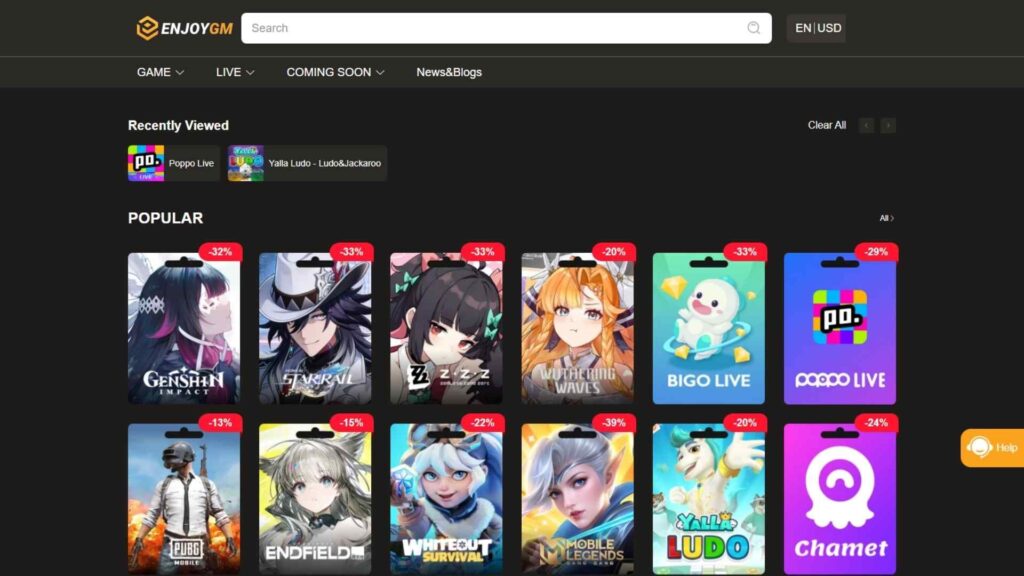
If you’re diving into Poppo Live and planning to send gifts during those thrilling PK matches or support your favorite hosts in live rooms, topping up coins can level up the fun fast. For the smartest value without paying full in-app prices, use Enjoygm and recharge Poppo Live there. It’s a reliable, authorized recharge option that delivers coins quickly and at better rates, letting you jump straight into the action with more sparkle for your streams or chats.



Why Run Poppo Live on PC?
Poppo Live users are seeking the best methods to run this app on a PC due to multiple reasons. And here they are:
- Larger screen for better viewing and multi-room browsing
- Smoother live streaming with stable performance
- Easier typing in chats during fast PK matches
- Better camera and microphone control
- More comfortable for long hours of streaming or watching
The best way is using a reliable Android emulator like BlueStacks because it’s free, safe, and optimized for apps like Poppo Live.
Poppo Live Download PC: Run Poppo Live – Live Stream on PC
Poppo Live doesn’t have a native desktop app, but running it on PC gives you a massive advantage for live-streaming or watching. Running on a PC means a larger screen for multi-room browsing, smoother chat typing during busy PK sessions, and better performance when gifts and effects are flying. You can use an Android emulator like BlueStacks for this
Follow these simple steps for Poppo Live download pc:
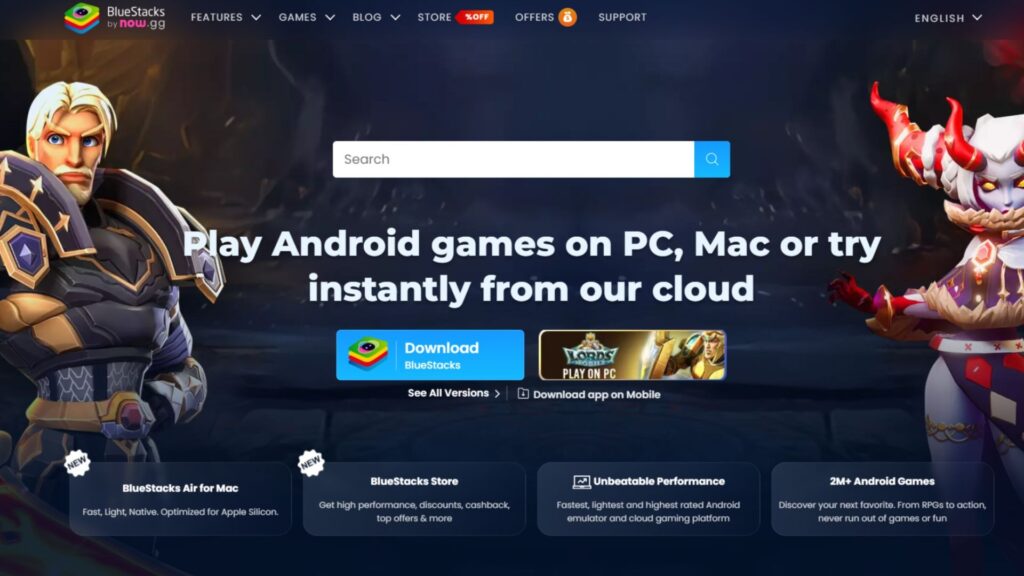
- Go to the official BlueStacks website and click the download button for BlueStacks (it’s free and safe).
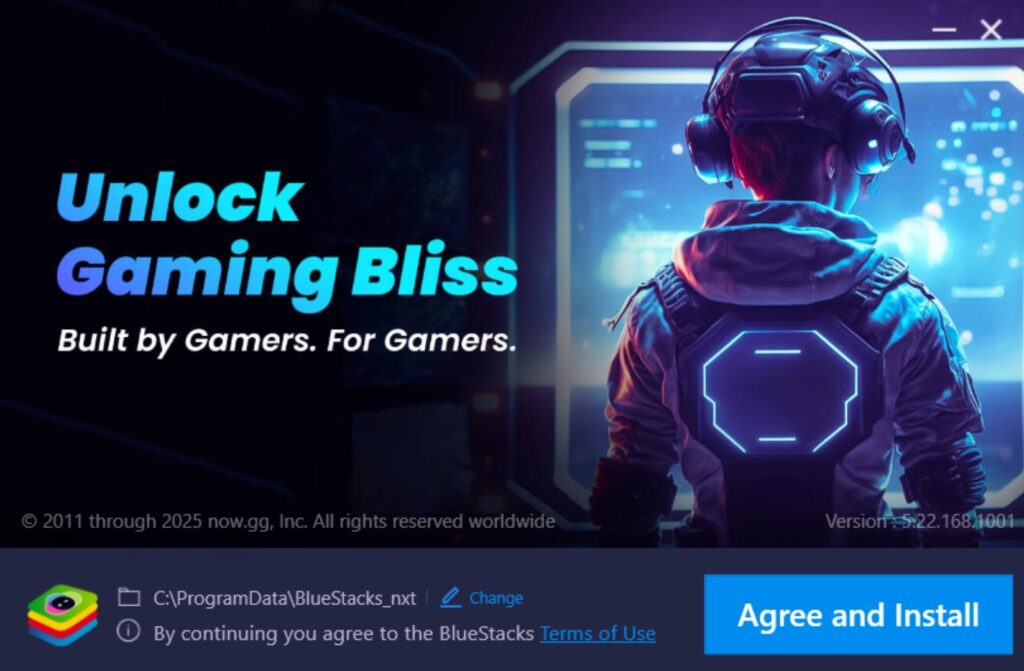
- Install the emulator on your Windows PC (compatible with Windows 7 and above; needs at least 2 GB RAM and 5 GB free disk space and more RAM recommended for smooth live streams).
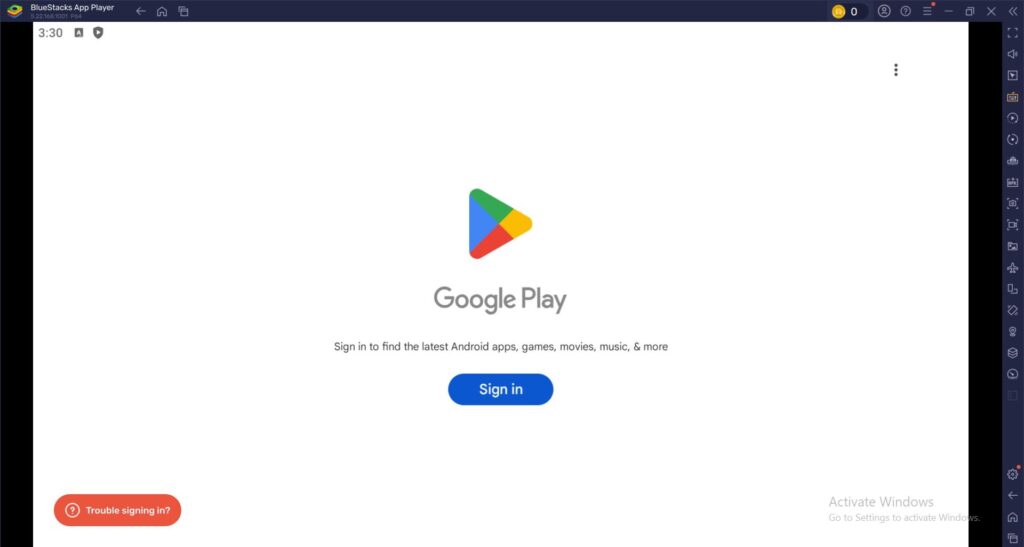
- Launch BlueStacks and complete the Google sign-in to access the Play Store (or skip and do it later).
- In the search bar at the top right, type “Poppo Live- Live Stream.”
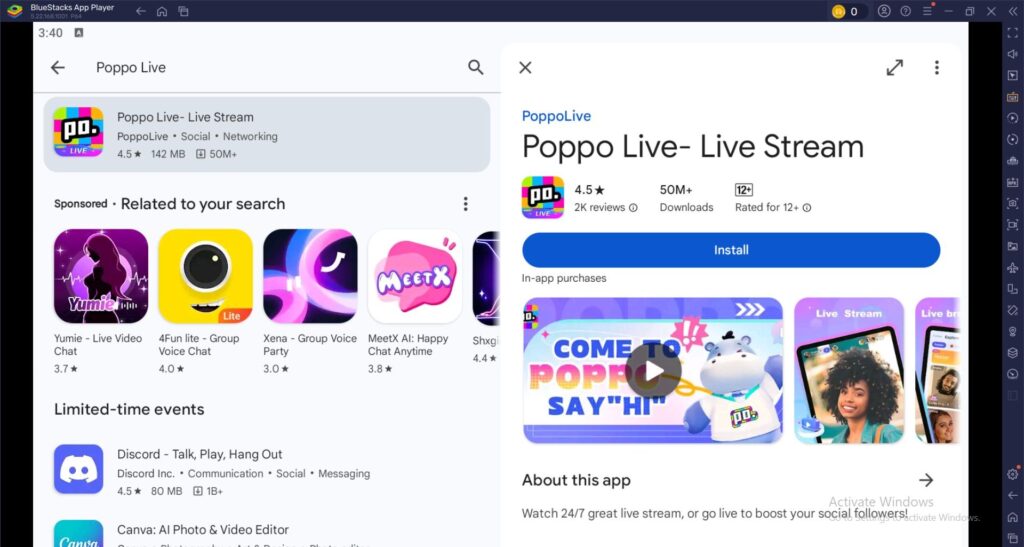
- Click Install from the search results.
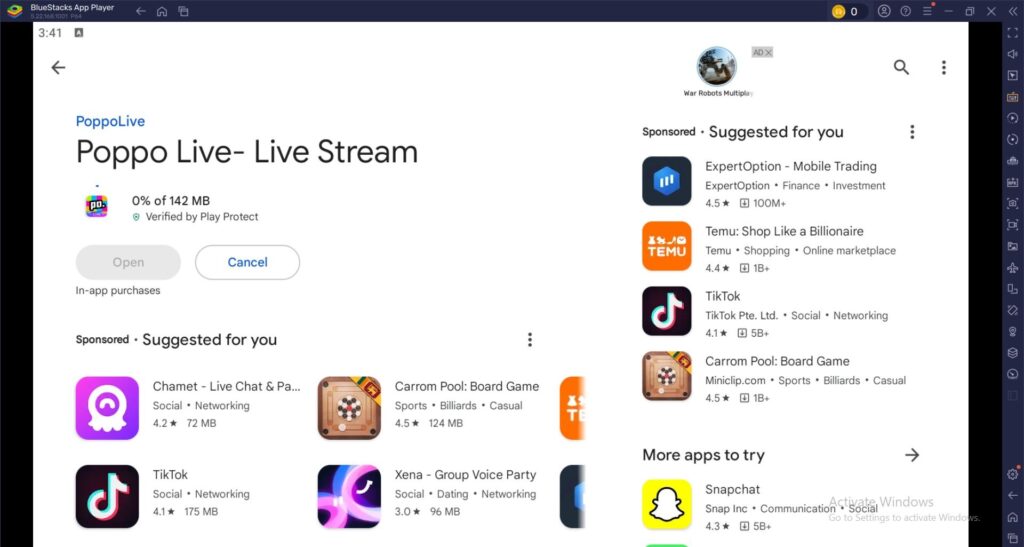
- Once installed, find the Poppo Live icon on the BlueStacks home screen and launch it.
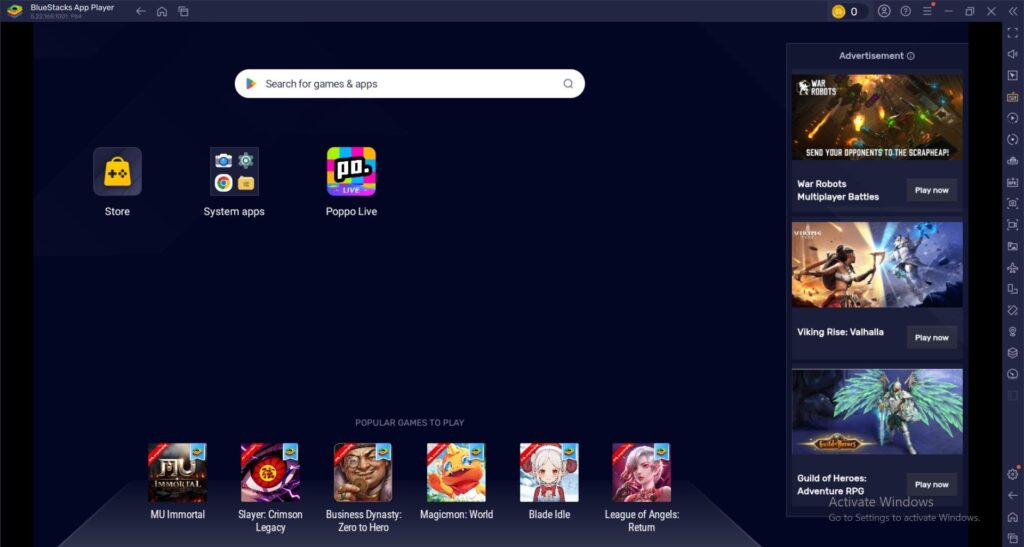
- Log in with your account and you now have the full app running on your PC.
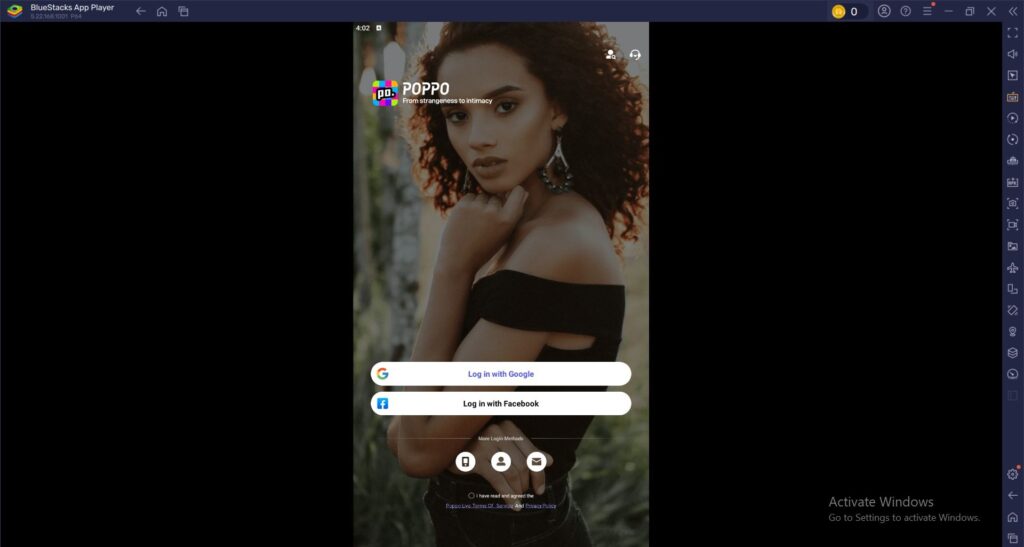
Pro Tip: After installing, go to BlueStacks settings (gear icon) → Performance and allocate more CPU cores and RAM for better streaming quality. Also enable “High Performance” mode if available.
On PC, you’ll enjoy bigger visuals for watching hosts, easier navigation during Passion PK or party modes, and more comfortable streaming if your setup supports camera and microphone pass-through. BlueStacks keeps everything private and secure, with no extra malware.
Essential Tips for Live Streaming on Poppo Live PC
- Camera & Microphone Setup: In BlueStacks, click the camera icon on the side toolbar to enable your webcam and mic. Grant permissions when prompted. Test them in a private stream first.
- Keyboard Shortcuts: Use BlueStacks keyboard mapping (Ctrl + Shift + A) to create hotkeys for sending gifts quickly, switching rooms, or muting/unmuting.
- Better Streaming Quality: Run the app in full-screen mode for the best experience. Close background apps to keep performance high.
- Multi-Account Support: BlueStacks allows multiple instances which are useful if you want to manage viewer and streamer accounts at the same time.
- Gift Sending & PK Battles: The bigger screen and mouse control make sending big gifts and reacting during Passion PK much easier and more fun.
Poppo Live Download Android APK
If you also want to use it on your phone, just open Google Play Store and search for Poppo Live – Live Stream there. Then you can install the official app. If the Play Store isn’t available in your region or you prefer a direct file, an APK can work but you have to stick to trusted sources only to avoid risks. The global version doesn’t offer an official direct APK download on poppo.com (they point users to app stores), so third-party sites like Uptodown or Aptoide sometimes host verified versions.
Important Safety Steps before Any APK
- Download only from well-known repositories that scan files.
- Enable “Install unknown apps” in your device settings (Settings > Apps > Special app access).
- After downloading the latest version, scan it with your antivirus.
- Install, then verify the package name matches com.baitu.qingshu.
Once installed, launch the app and complete the same signup process. Keep in mind that APK updates won’t come automatically, so you’ll need to check manually for new versions to enjoy bug fixes and new features like the Creator Center for posting videos and leveling up.
Getting Started and Useful Tips After Downloading
After installation (whether on Android or PC), set up your profile with a clear photo and bio so hosts and viewers can find you easily. Explore the bottom navigation: Home for live rooms, Live to broadcast, Moments for VLOGs, Messages for chats, and Profile for settings.
To make the most of Poppo Live:
- Enable notifications for your favorite hosts and regional streams.
- Practice in test streams before going public.
- For PC users, map keyboard shortcuts in BlueStacks for faster gift sending or switching rooms.
When those exciting moments hit like cheering on a host with special effects or joining a ranked PK — having extra coins ready makes everything more vibrant. That’s whereEnjoygm shines naturally: it connects right to your Poppo Live UID (found in your profile) and tops up coins instantly at great rates, so you can keep the energy high without pausing the fun.
Troubleshooting Common Download and Setup Issues
- BlueStacks running slow? Increase RAM/CPU allocation and update your graphics drivers.
- Camera/Mic not working? Check permissions in BlueStacks settings and restart the instance.
- App crashes? Clear cache in BlueStacks or reinstall the app.
- Login issues? Use phone number verification or clear app data.
Conclusion
Running Poppo Live on PC is the smartest way to enjoy live streaming, whether you’re a viewer who loves big-screen action or a creator who wants professional-level streaming comfort. With BlueStacks, you can get set up in under 10 minutes and start connecting with the global community right away. Download it today, go live, and turn your streaming experience into something much more exciting!.